Information
Before you connect your accounts, make sure your details match in both ZEN and Kanga Exchange. This prevents failed connections and helps your deposit or withdrawal go through smoothly. These details must be the same in both services:
- Phone number,
- Email address,
- First names, middle names, and surnames,
- Document used,
- Residential address.
If the above details do not match on your accounts, you will need to update them.
To link your ZEN and Kanga accounts during your first deposit to Kanga, follow these steps:
- If you do not yet have a Kanga Exchange account, create one using exactly the same details as those registered on your ZEN account.
- Log in to your account on the Kanga website (external link).
- Select “Wallet” at the top of the page, then click the “Deposit Money” button in the Kanga Wallet portal.
- Choose your country of residence and one of the currencies supported for ZEN deposits, such as PLN, EUR, GBP, or USD. If ZEN deposits are available for your country and currency combination, the payment provider “GoCash” will appear.
- Select “GoCash” as the payment provider for your deposit.
-
In GoCash, enter the deposit amount and select “ZEN” as the payment method. Current fees are always indicated on the deposit page.
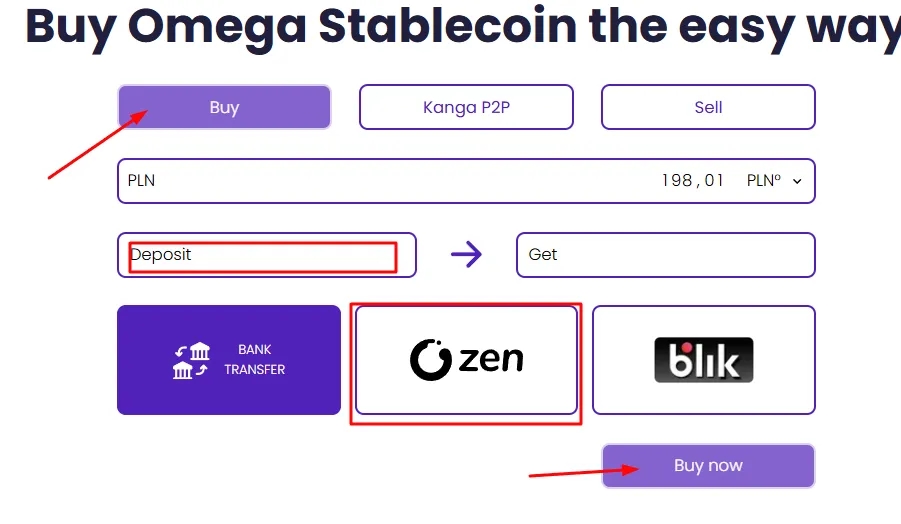
- Press “Buy Now” to continue.
- To link your account with Kanga Exchange, enter the phone number you used during registration in the ZEN.COM app. If you do not yet have a ZEN account, you will have the option to create one.
- After entering your phone number, click the “Next” button to link the accounts.
- You will be asked to approve the transaction in the ZEN.COM app.
- Done! Your Kanga Exchange and ZEN accounts are now linked, and your first deposit to Kanga is completed!
To link your ZEN and Kanga accounts during your first withdrawal from Kanga, follow these steps:
- Log in to your account on the Kanga website (external link).
-
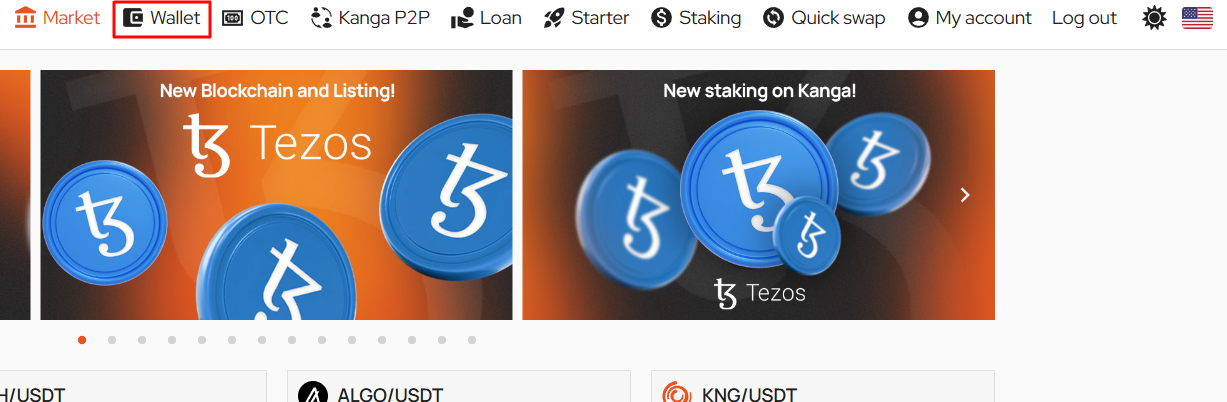
Select “Wallet” at the top of the page.
-
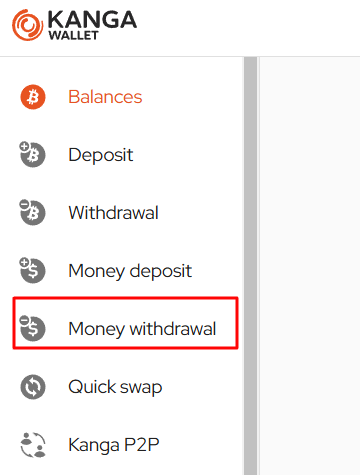
Click the “Money Withdrawal” button in the Kanga Wallet portal.
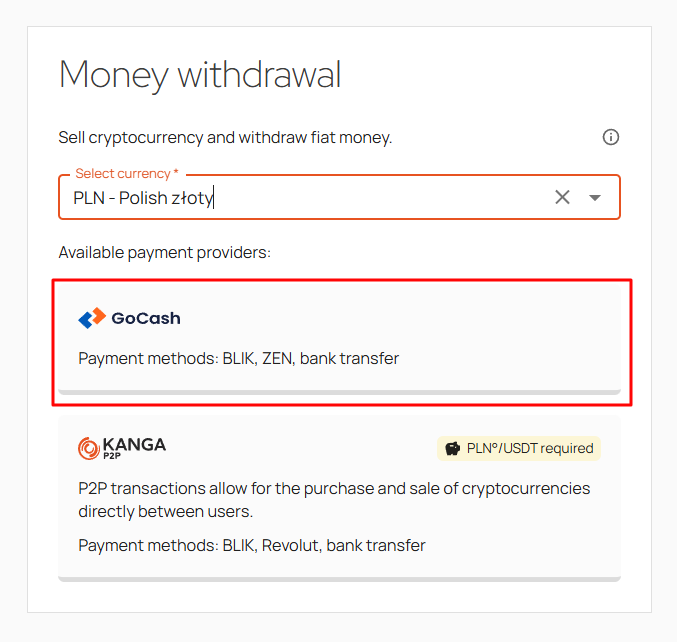
- Choose the currency you want to convert your cryptocurrencies into. From the dropdown list, you can select PLN, EUR, GBP, and USD.
-
Select withdrawal via the payment gateway GoCash. Using GoCash, you have the option to withdraw funds to your ZEN account.
-
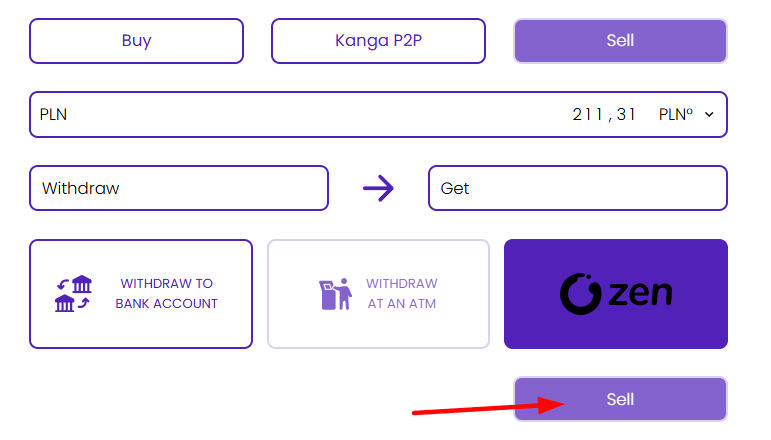
In the next window, enter the withdrawal amount, check the “ZEN” option, and click the “Sell” button.
- To link your account with Kanga Exchange, enter the phone number you used during registration in the ZEN.COM app. If you do not yet have a ZEN account, you will have the option to create one.
- After entering your phone number, click the “Next” button to link the accounts.
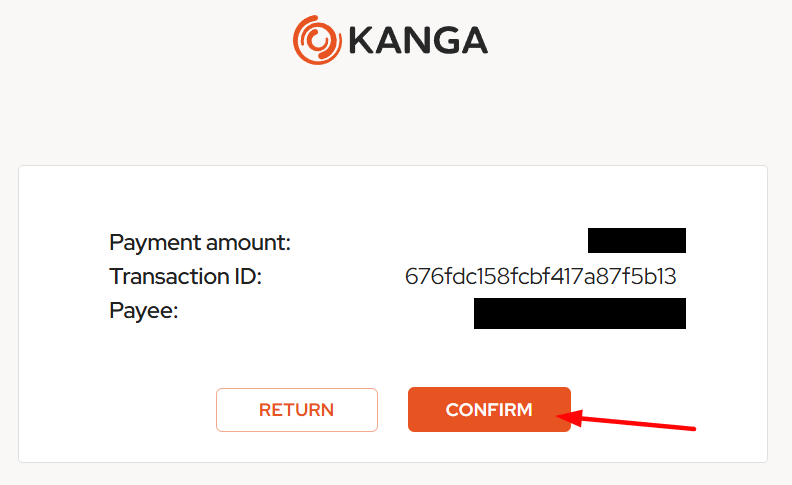
- In the next step, you will be redirected to the Kanga Pay page to finalize the transaction.
- Press “Proceed” to continue.
-
You will be asked to log in to the Kanga platform and then approve the transaction.
- If everything went according to plan, you will see a confirmation window. Click “Return” to complete the transaction.
For more information about using Kanga Exchange, please refer to the official exchange blog here.